Ad Blocker For Firefox12 Best Ad Blocker Extensions for Chrome, Compared
12 Best Ad Blocker Extensions for Chrome, Compared
The short answer
The best ad blocker for Chrome depends on what you want. uBlock Origin is a light, free choice that many people prefer. AdBlock and AdGuard are popular with simple setup. Check that any extension is free before you install it, read its permissions, and look for acceptable ads settings you may want to turn off. You can also use Chrome's built-in controls for basic pop-up blocking.
Some links on this site are affiliate links: if you buy through one, the site may earn a commission at no extra cost to you. More about this.
If you are switching from Firefox, the good news is that most of the big names work in Chrome too. The differences are mostly in what each one does by default and how much it asks of you. This page looks at 12 ad blocker extensions for Chrome and compares them on the things that matter in everyday use: cost, setup, resource use, and whether they block video ads and trackers as well as banners. The list was chosen from widely used, established extensions, and we say below what we have and have not tried ourselves.
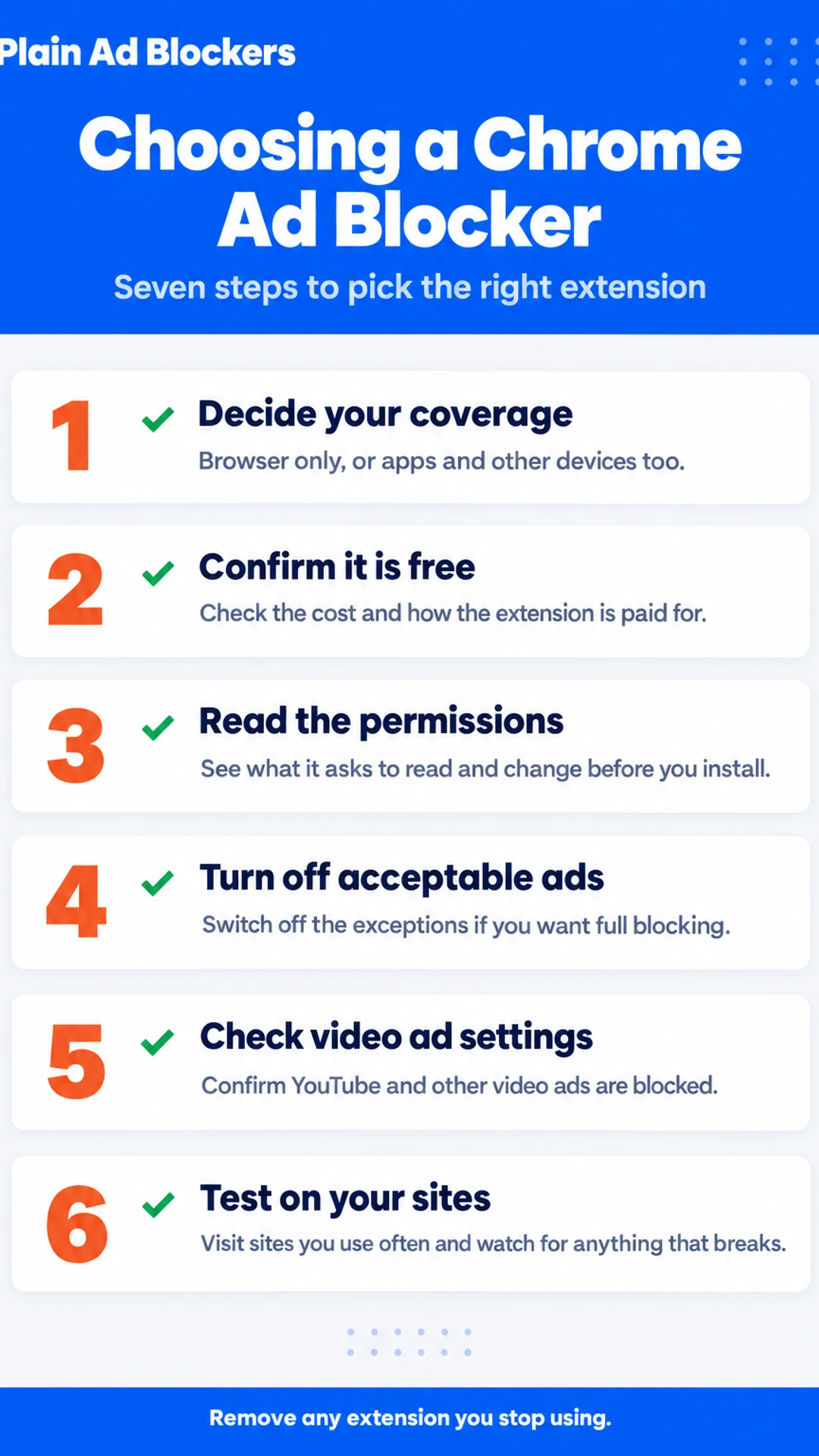
Here is the short version of how to pick one:
- Decide whether you only need browser protection or want coverage across other apps and devices.
- Confirm the extension is free and find out how it is paid for.
- Read the permissions it asks for before you click install.
- Turn off acceptable ads or similar exceptions if you want full blocking.
- Check the settings for YouTube and other video ads.
- Test it on a few sites you visit often and see what breaks.
- Learn how to switch it off for a single site you trust.
Let's dive in.
Chrome ad blockers at a glance
| Option | Best for | Key feature | Cost as stated | Setup |
|---|---|---|---|---|
| uBlock Origin | Light, free blocking | Low memory use, blocks trackers and malware | Free | One click, no account |
| AdBlock | Simple point-and-click use | Block ads on this page, YouTube ads | Free version, acceptable ads program | Not stated |
| AdGuard AdBlocker | Blocking across several devices | Same filters on Windows, Mac, Android, iOS | Free tier for basic blocking | Not stated |
| Ghostery | Tracker visibility and control | Lists trackers and blocks by category | Not stated | Not stated |
| Adblock Plus | Users who check acceptable ads | Allows some acceptable ads by default | Not stated | Not stated |
| AdBlocker Ultimate | Mobile browsing | Built-in browser, anti-adblock script blocking | Not stated | Not stated |
| Total AdBlock | Chrome-only, no settings needed | Blocks scam domains inside the browser | Not stated | Simple, works after refresh |
| Surfshark CleanWeb | Blocking beyond Chrome | Runs through the VPN app, covers apps and TVs | Paid subscription | Needs VPN active and extension on |
A closer look at each
uBlock Origin: The free blocker most people compare others against. It is light on memory and blocks ads, trackers and malware domains by default. Setup takes one click from the Chrome Web Store, and it needs no account. Worth knowing: it does not show an acceptable ads list, so you see what it blocks without extra steps.
AdBlock: A widely installed option with a simple, point-and-click feel. You click the extension icon, pick "Block ads on this page," and the element disappears. It handles YouTube video ads and pop-ups well. Its free version is supported by an acceptable ads program, which you can switch off in its settings.
AdGuard AdBlocker: A good pick if you want blocking across more than one browser or device. The Chrome extension sits alongside AdGuard apps for Windows, Mac, Android and iOS, so the same filters follow you. Its settings page lets you choose filter lists, and there is a free tier for basic blocking.
Ghostery: Suits readers who care most about tracking rather than ads. It shows a list of trackers on each page and lets you block them by category. Its default settings focus on privacy, so you may see fewer ads blocked than with a pure ad blocker. Turn on its ad blocking in the settings if you want both.
Adblock Plus: One of the oldest blockers, and one readers should check before installing. By default it allows some "acceptable" ads from companies that pay to get through. In the CoolTechZone video, the reviewer had to turn that off in settings. Their test also found Adblock Plus used more CPU and memory than other blockers, which they noticed with many tabs open.
AdBlocker Ultimate: A blocker that also offers a built-in browser, mainly used on mobile. On Chrome the extension blocks ads and trackers and has a setting to stop anti-adblock scripts. The built-in browser is the bigger draw on Android, where it can block pop-ups and video ads. On desktop, the extension alone is what most people need.
Total AdBlock: This is a browser-only option. I found it simple to set up, and it is a good fit for someone who wants blocking in Chrome without learning any settings. Reviewer CoolTechZone found it worked straight away after install and a tab refresh, with display ads, pop-ups, cookie banners and YouTube pre-rolls all gone. It also blocks known scam domains, but only inside the browser.
Surfshark CleanWeb: Choose this if you want ad blocking on more than Chrome. CleanWeb runs through the Surfshark VPN app, so it covers apps, mobile games and some TV setups such as Fire TV. CoolTechZone found it only works properly with the VPN active and CleanWeb turned on in the browser extension too. Surfshark is a paid subscription, so check the current price before you sign up.
Chrome's built-in ad and pop-up controls: This is the starting point if you do not want to install anything. Chrome has a pop-up blocker and site settings that limit intrusive ads. It will not block video ads or trackers the way an extension does, so expect more ads on busy pages. It is a fair first step before you add a blocker.
AdBlock for Android: This is for people who want ad blocking on a phone outside Chrome. Standard Chrome extensions do not run in the Chrome app on Android, so you will need a blocker built for mobile. Look for one that works in the browser you actually use, since ads slow pages down and use up data on mobile connections.
Firefox-only and cross-browser options: Some blockers are made only for Firefox, while others work in both Chrome and Firefox. If you use both browsers, or plan to move to Firefox, pick one that supports both so your setup stays the same. Check the extension page in each browser store before you install, since a blocker built for one may not exist for the other.
How to check an extension before you install it: Look at what it asks permission to read and change on the sites you visit. Check the publisher and the number of reviews, and read recent comments about data collection or breakage. Be wary of an extension that pushes a paid upgrade hard or adds unrelated content. Only install what you need, and remove anything you stop using.
What hands-on reviewers found
These are other people's hands-on tests, summarised and credited to them. Watch the full videos for their complete reviews.
CoolTechZone: I found the best AD BLOCKER extension | 3 Tools Compared
The reviewer thinks Surfshark's CleanWeb is the best all-round ad blocker across devices, Total AdBlock is the best simple browser-only option, and Adblock Plus should be avoided by default because of its acceptable ads program and higher r
- Adblock Plus enables an acceptable ads program by default, letting companies like Google or Amazon pay to bypass block lists. The reviewer had to disable this in settings. (at 1:04)
- Adblock Plus uses more CPU and memory than other ad blockers. The reviewer, who keeps many tabs open, felt the drag and removed it after about half an hour. (at 1:20)
- Total AdBlock worked straight away after install and a tab refresh. Display ads, pop-ups, cookie banners and YouTube pre-rolls were all gone. (at 1:38)
Frequently asked questions
How do I stop ads on my phone?
On Android, Firefox for Android supports some ad blocking extensions, while Chrome on Android does not allow extensions. Another option is a system-wide blocker app or a VPN app with a built-in ad blocker, which works across browsers and apps. Check whether the blocker works in the browser you actually use before you install it.
How do I turn off ad blocker?
In Chrome, open the Extensions menu, find your ad blocker, and switch it off or remove it. To pause it on one site only, open the blocker's menu while on that page and choose to disable it for that site. Reload the page afterwards so the change takes effect.
What does an ad blocker do?
An ad blocker stops ads from loading on the pages you visit. Most also block trackers, which follow you across sites, and pop-ups or autoplay video. Blocking is done by filter lists that match known ad servers and page elements, so the page loads faster and looks cleaner.
Are ad blockers legal?
Yes, using an ad blocker is legal in most countries, and it is a common choice for personal browsing. Some websites ask visitors to turn blockers off, and they can limit access if you do not. Blocking ads on your own device is generally treated as your decision.
Which ad blocker should I use on Chrome?
Pick one with a clear privacy policy, a short list of permissions, and a good record of not showing acceptable ads by default. Read what it asks access to before installing. A lighter blocker uses less memory, which matters if you keep many tabs open.
Wrapping up
We have covered 12 options, and each one suits a different kind of browser user.
Which one will you try first? If we missed one you rely on, tell us which and why.
If you want blocking that covers more than the browser, Visit the official site to see the Surfshark Starter plan, which includes CleanWeb ad and cookie blocking alongside a VPN and Alternative ID. The page notes a 30-day money-back guarantee.